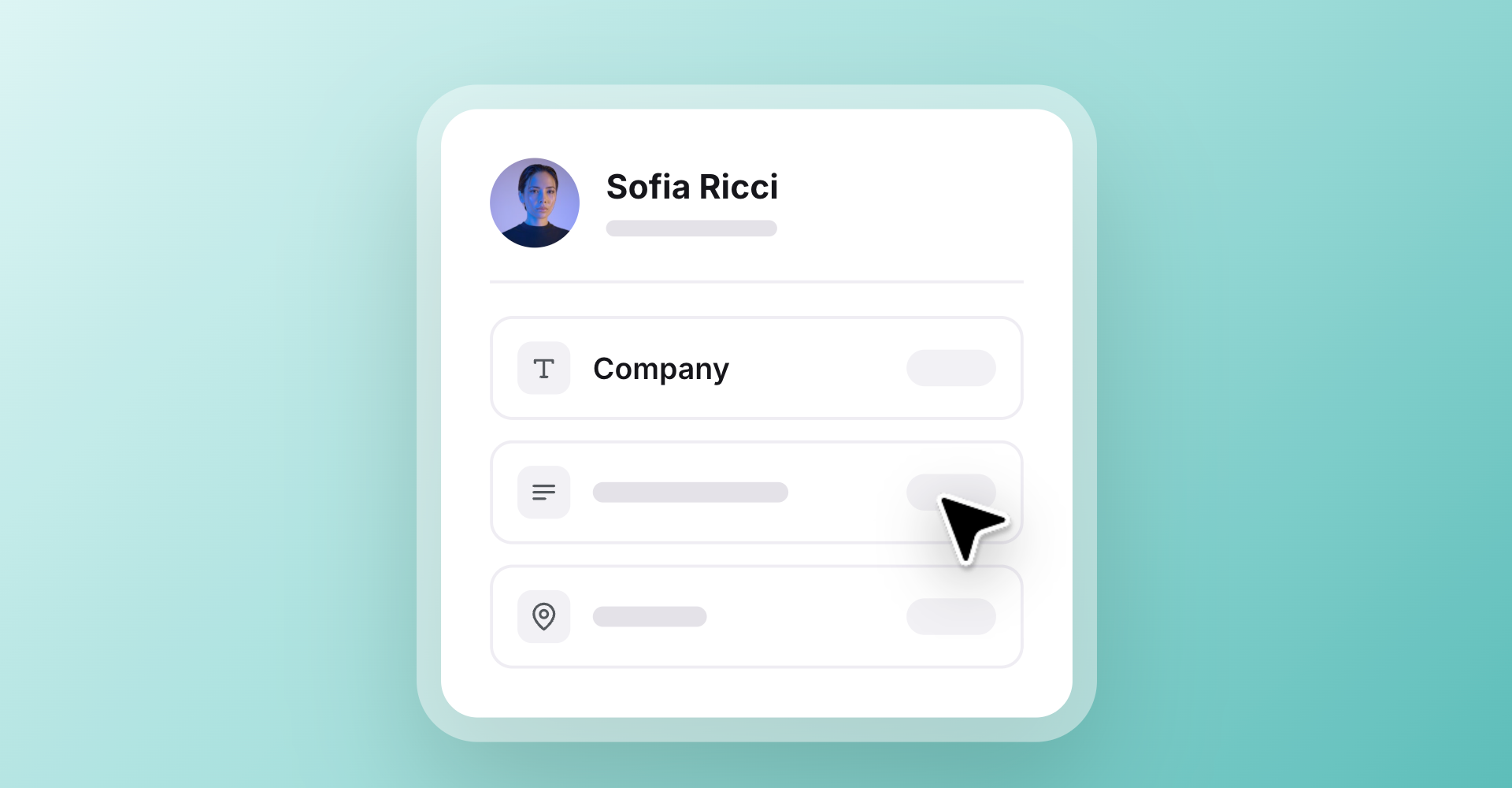
Custom fields allow you to store more information about your members directly within Ghost Admin. You can add a field for your own choices, such as a full address, a company name, or a list of choices. Custom fields can be added from within Ghost Admin, or at the time of import.
Creating custom fields
To create a custom field, go to the Settings → Custom fields area within Ghost Admin, and click add custom field.
Custom fields support the following field types:
- Short text
- Long text
- Lists (one answer selection, or multiple)
- Address
When creating a custom field, the field starts out as private and is only visible to staff users. When you make a field public, members can see and fill out the fields with their information directly from their profile in Portal.
To make a field visible, toggle the Visible to members option on, from the custom field’s settings.
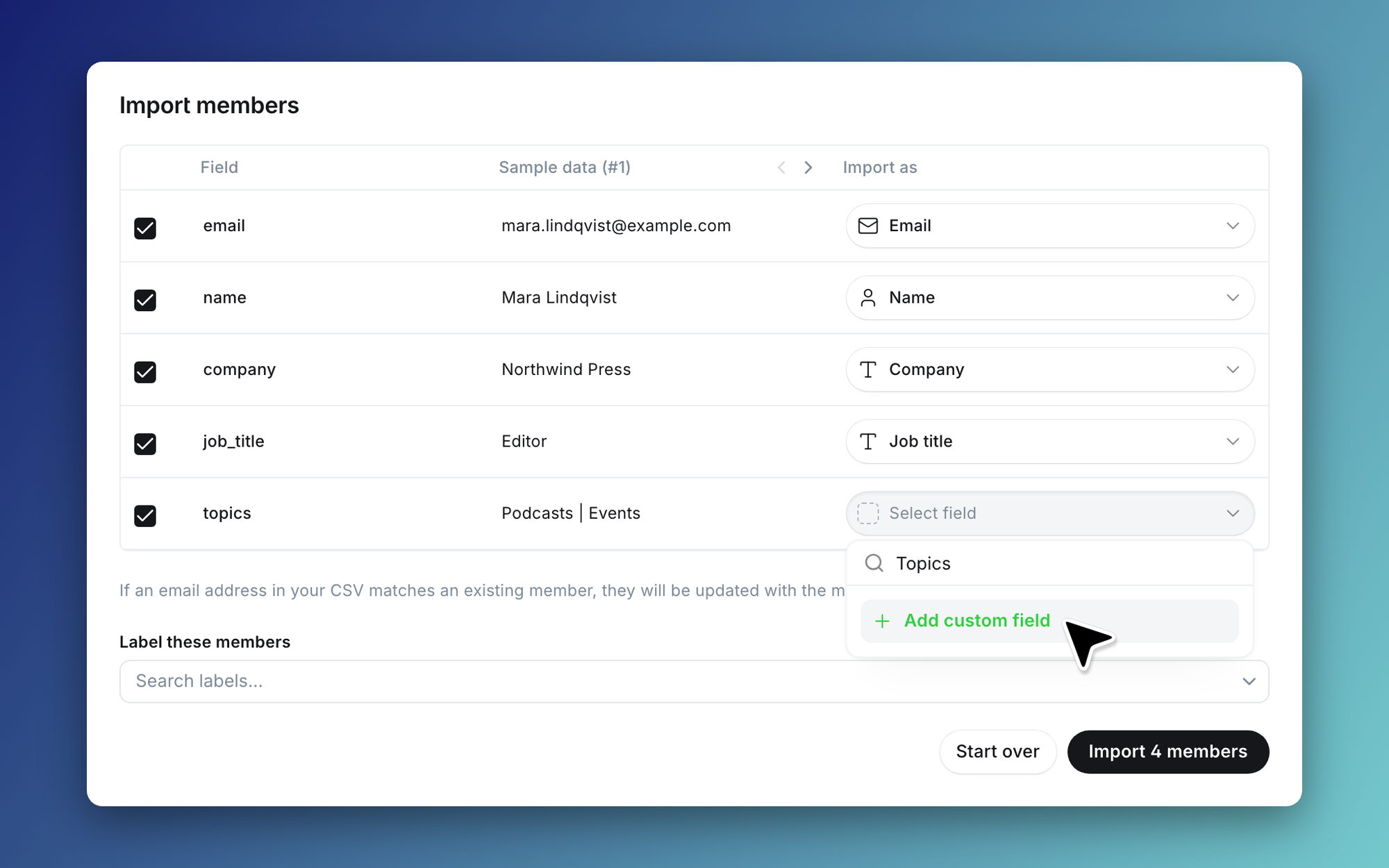
Custom fields can also be created when importing members into Ghost, allowing you to map additional data from your import directly to each member’s profile in Ghost Admin.
Adding values to custom fields
You can add values to a custom field for a member through a variety of methods:
- Editing Member Profiles in Ghost Admin
Once a custom field exists, you can edit a member’s profile to populate a value for each field. - CSV Import
Member data contained in your CSV can be mapped to a custom field, which would then be stored with their member profile. - Admin API / Zapier
Custom field values can be updated for members using the Admin API in Ghost, or third party integrations such as Zapier. - Members in Portal
When a custom field is public, members can fill it out directly in their Portal profiles.
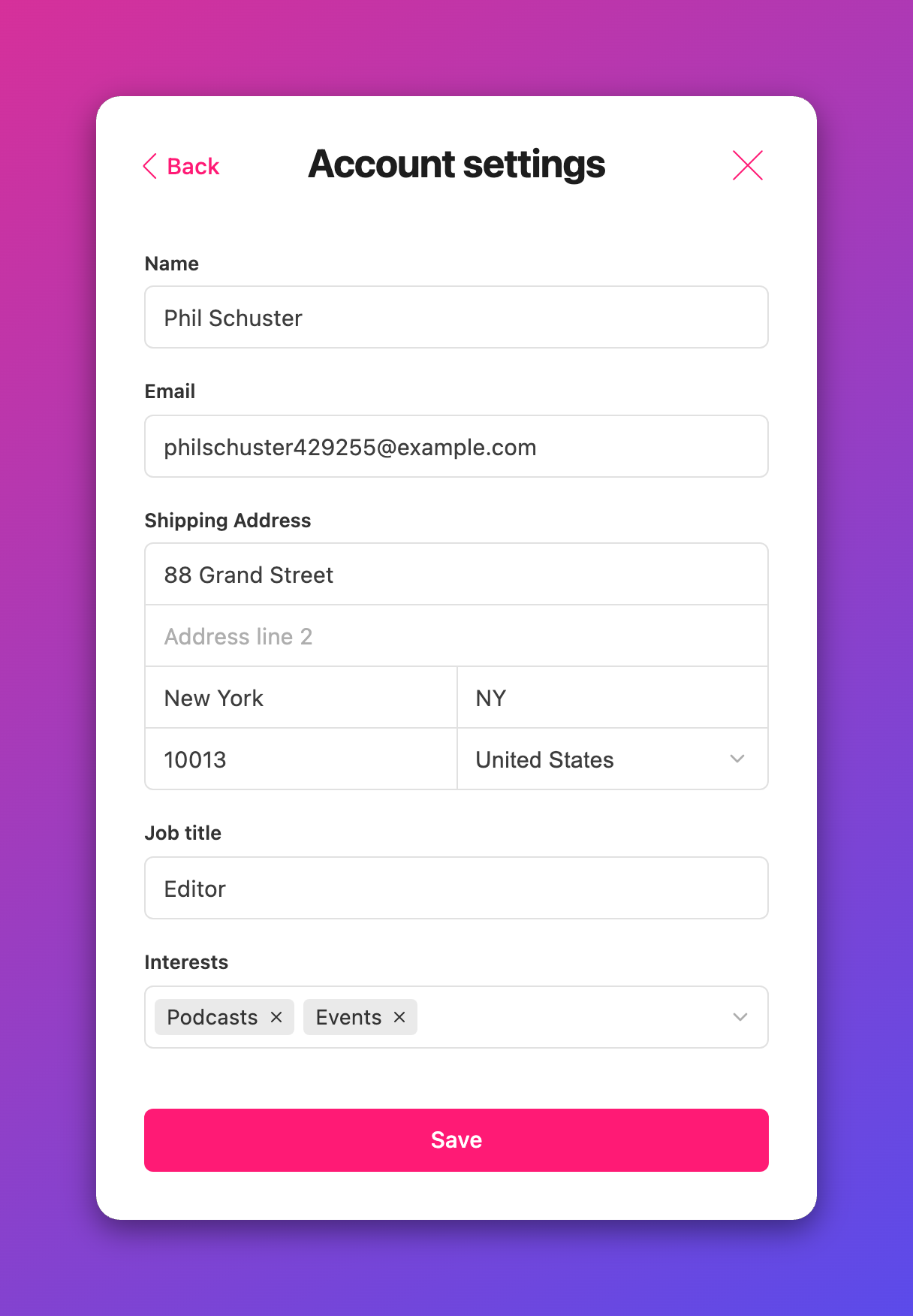
You can also retrieve a link directly to the profile area of a member account from the Settings → Portal → Links area, if you want to share it in an email, post, or elsewhere, to invite members to fill in their own information.
Filtering members
Once a member has entered information into a custom field, you can filter your member list based on which members have filled out their information. For example, you can find anyone who is still missing a job title or company reference, or who is located in the same region.
Once filtered, you can save the view to access it at any time within Ghost Admin. Custom field data is also included with your members when exporting your member list.
Archiving & deleting custom fields
If you no longer want to collect additional data from your members, or no longer want to keep the data your members have supplied, custom fields can be archived or deleted from within Ghost Admin.
Archiving a custom field
To archive a custom field, go to the Settings → Custom fields area, and click on the custom field you want to archive. Once the modal opens, click Archive to archive the field.
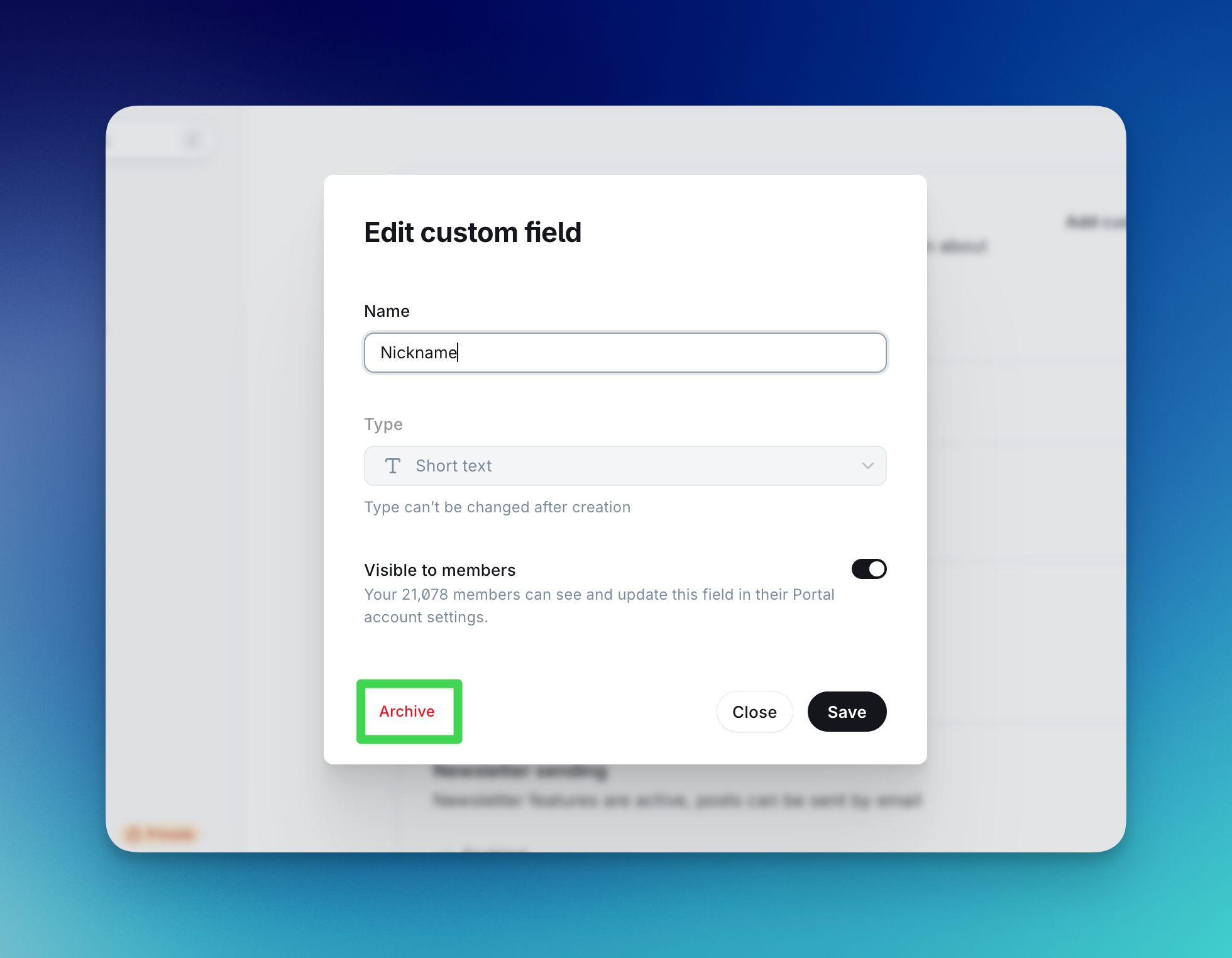
Archiving a custom field retains the member’s data that has already been collected, but prevents members from being able to enter information into that field going forward, as it would no longer be visible to the member.
Saved filtered views based on custom fields will still return results when a field is archived. Archived custom fields will not be included in member exports.
Deleting a custom field
Only archived custom fields can be deleted. Once a custom field has been archived, you can toggle over to the Archived list from the custom fields area, to view all archived fields.
To delete the field:
- Click on the custom field from the archived list
- Click the “…” option in the top right corner of the modal
- Select the option to Delete custom field
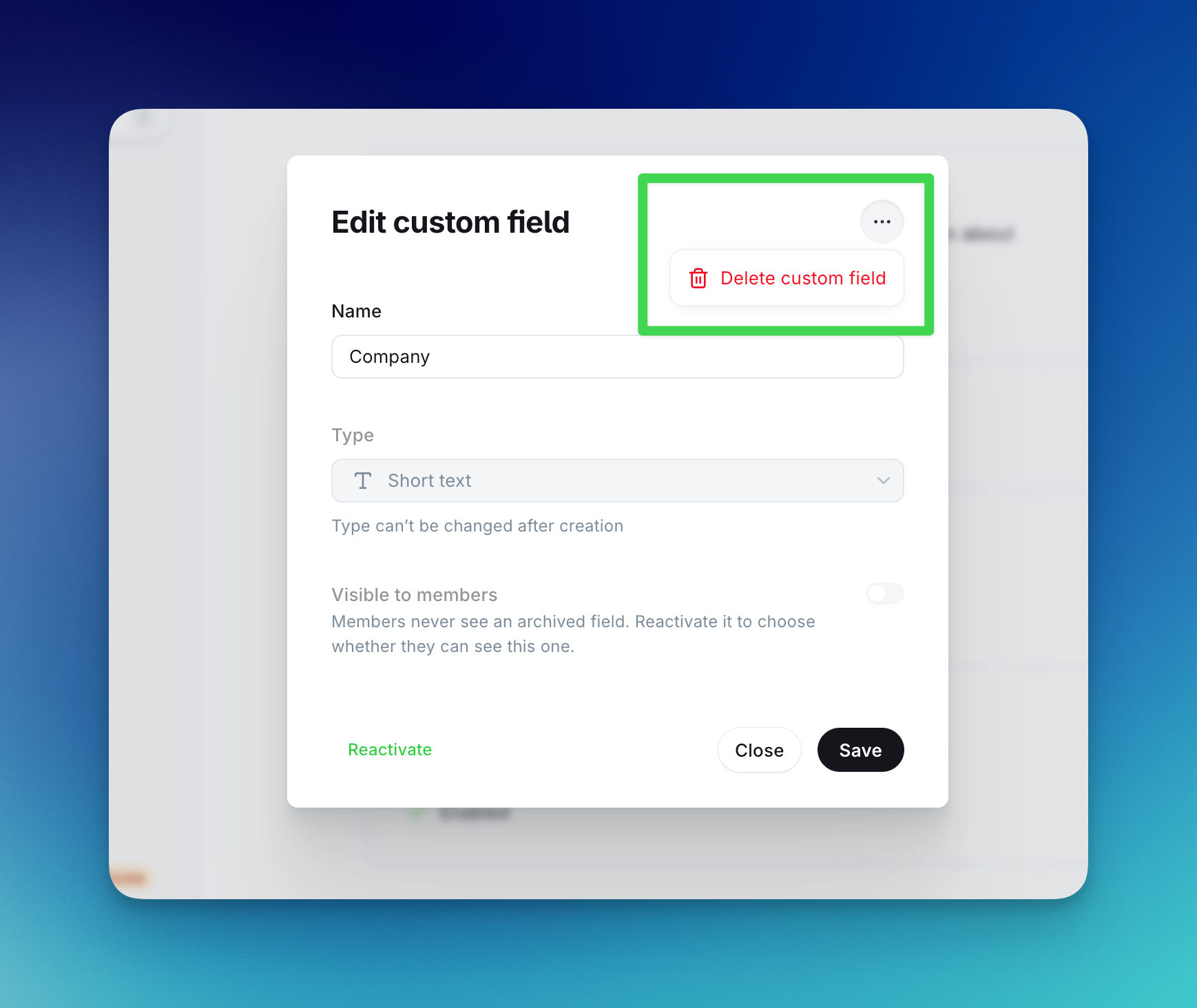
Deleting a custom field will delete all member data associated with it. This means that any filtered views you have tied to the custom field will no longer populate results, and the data the member has supplied for the field will no longer be returned in member list exports.
FAQ
Can I change a field's type?
No, once a type is selected and added, the type cannot be adjusted.
Can I edit list options?
You aren’t able to edit an option once a “list” custom field has been created. Instead, you can remove it and add a new option instead. Any answers already recorded stay as they are, and will still be displayed in filtered views.
Can a list field accept more than one answer?
Yes! As long as you select “allow multiple answers” when creating the field, members can select as many items as you have included in your options.
What happens when I make a field visible?
Members can see and update the field within their Portal account. Anything already recorded (for example, with a member import) would then become visible to them.
What happens when I make a field private again?
Members would no longer be able to see the field or update it within Portal.
Can I ask for a field at signup?
Not yet! Portal signup and embeddable forms in Ghost don’t support custom fields, so members will need to fill them in from within their profile in Portal, after they’ve signed up as members.
Can I make a field required?
No. Custom fields cannot be required.
Does a blank CSV cell during import clear a value for an existing member?
No, not yet! An import can fill values in, but not remove them.