



Want a simple way to understand what’s helping your Ghost publication grow? Growblog is an independent analytics dashboard built for Ghost publishers, giving you clear insights into traffic trends, content performance, SEO signals, and growth over time.
Add Growblog tracking to Ghost
Growblog can be added to Ghost using a lightweight tracking snippet via Code Injection.
1. Copy your Growblog tracking code
After you sign up, Growblog will guide you to the Setup page. You can also access it anytime at growblog.io/setup. Copy your unique code line.
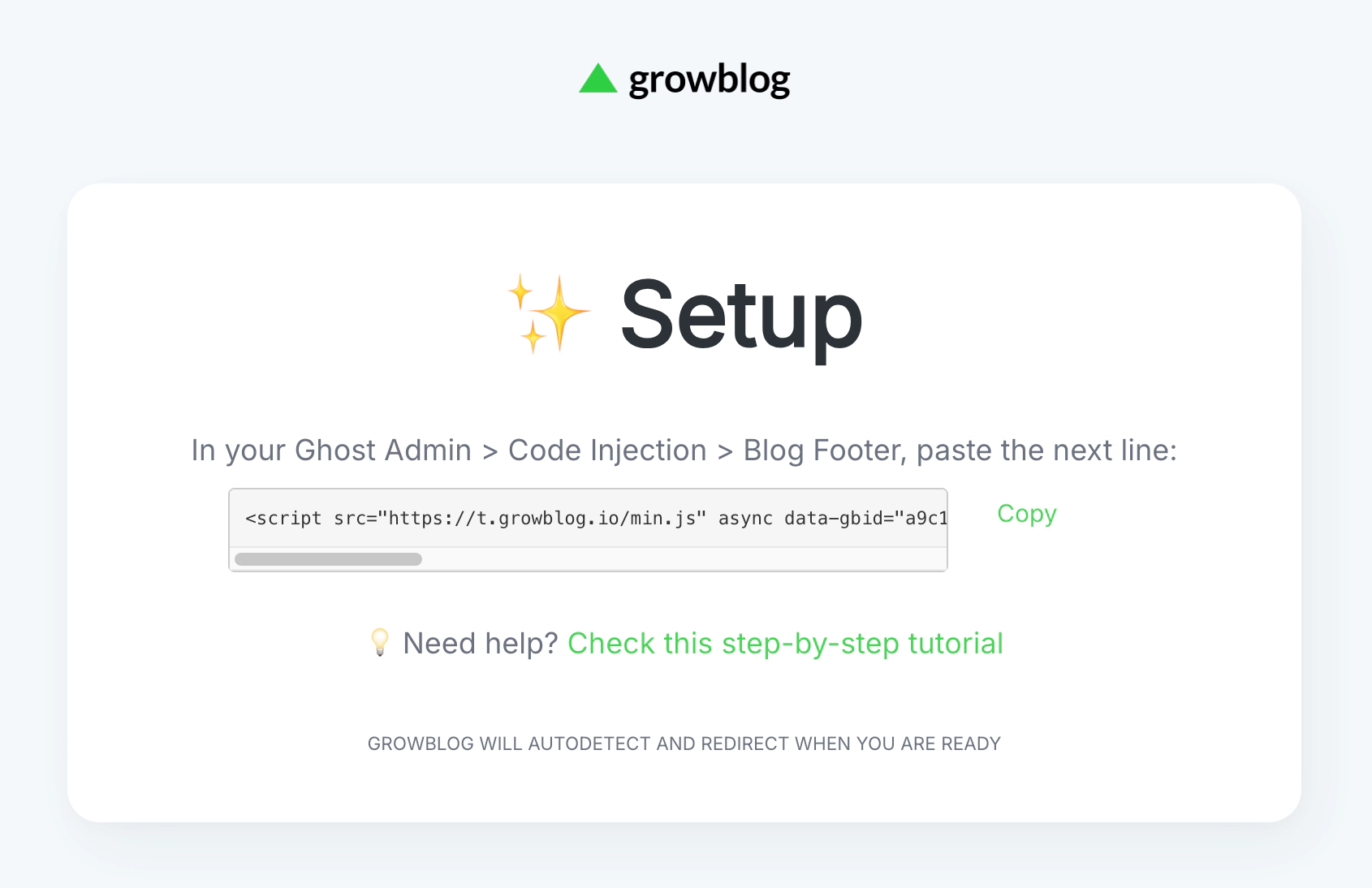
2. Paste the tracking code into Ghost
In Ghost Admin:
- Go to Settings -> Code Injection
- Paste the Growblog snippet into Site Footer
- Click Save
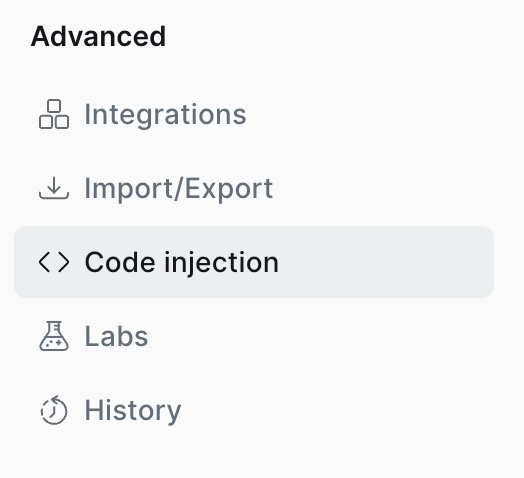
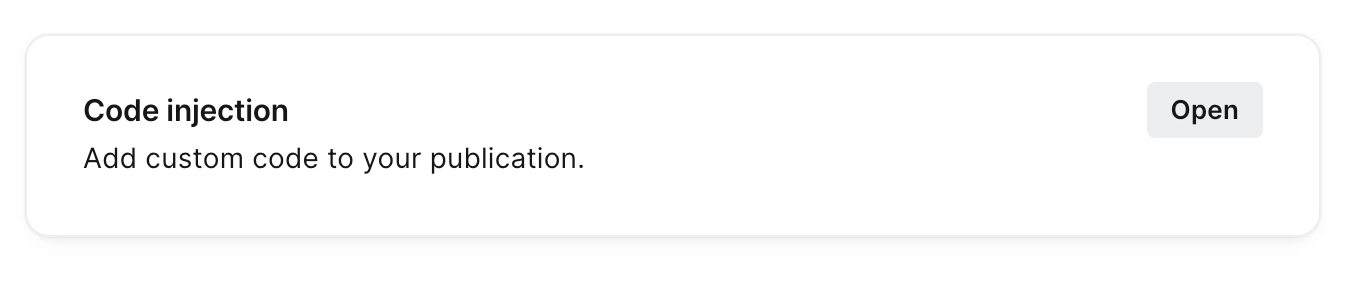
If you see an Open button in this section, click it first:
Then paste the snippet into the Site footer area:
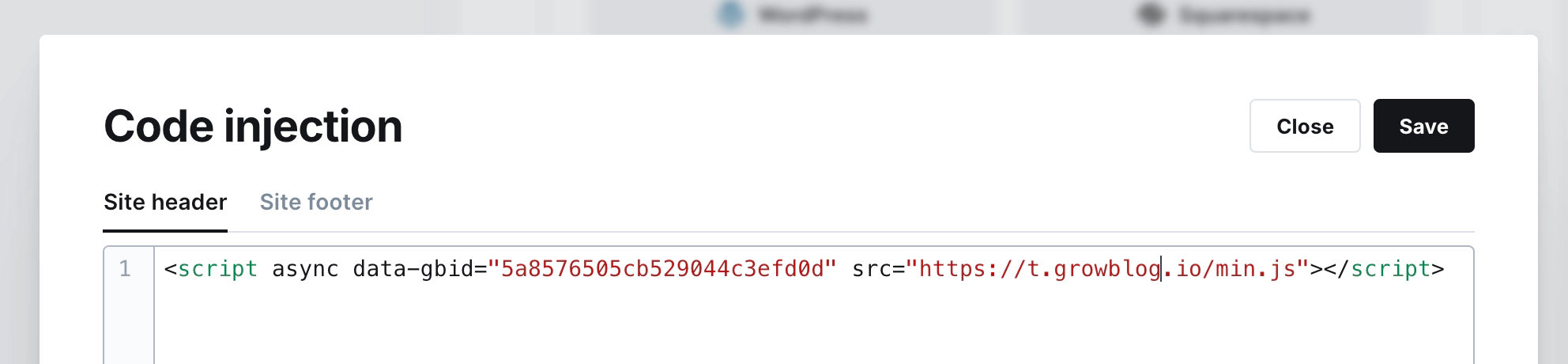
Tip: The snippet will also work in the Header section, but Footer is recommended for better performance.
3. Confirm it’s working
Once your site gets a few views, Growblog will begin showing data in your dashboard.
Connect Growblog to the Ghost Content API
Connecting the Ghost Content API is optional, but strongly recommended. It enables richer reporting by syncing your publication data, including posts, tags, and authors.
1. Create a custom integration in Ghost
In Ghost Admin:
- Go to Settings -> Integrations
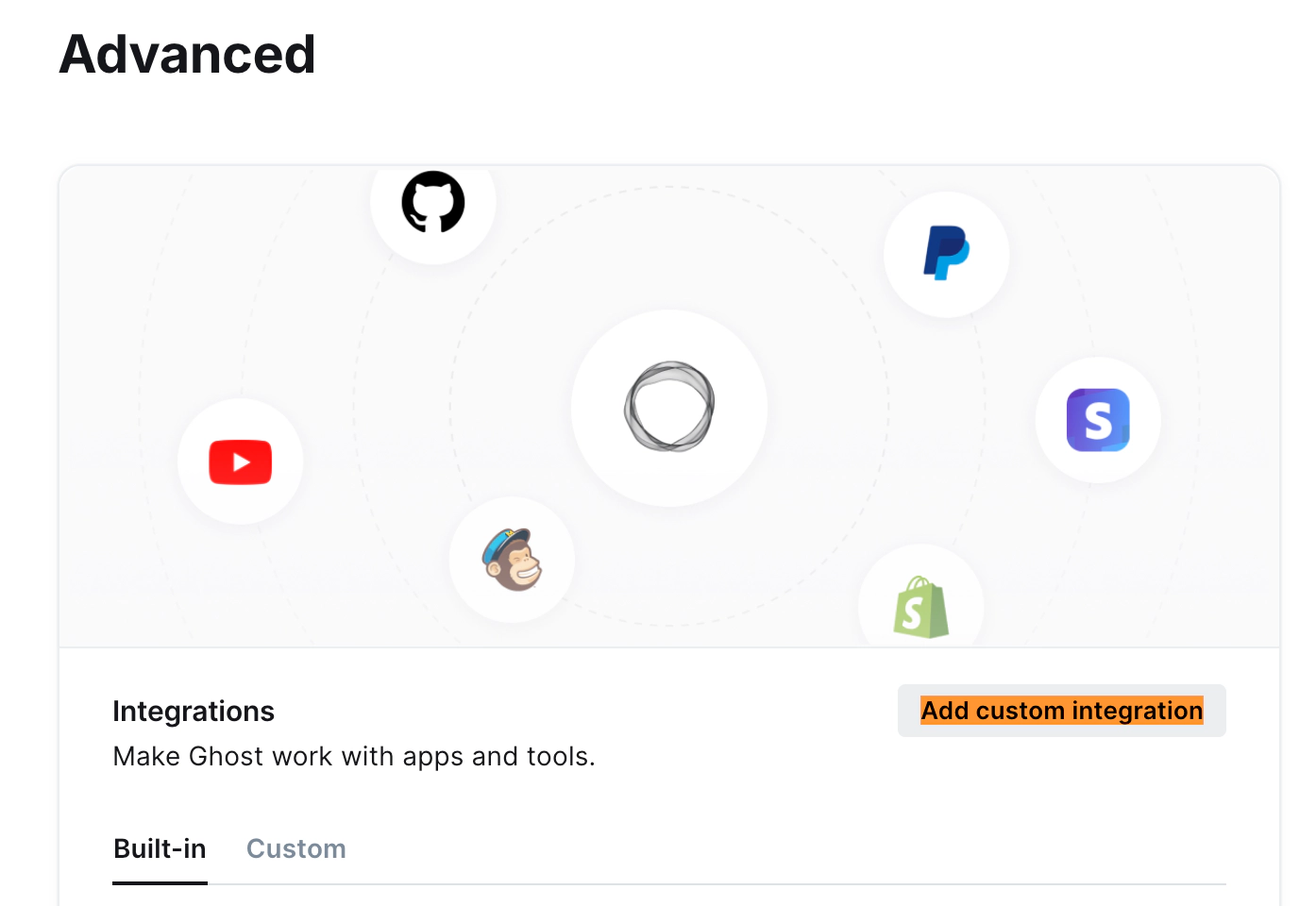
- Click Add custom integration
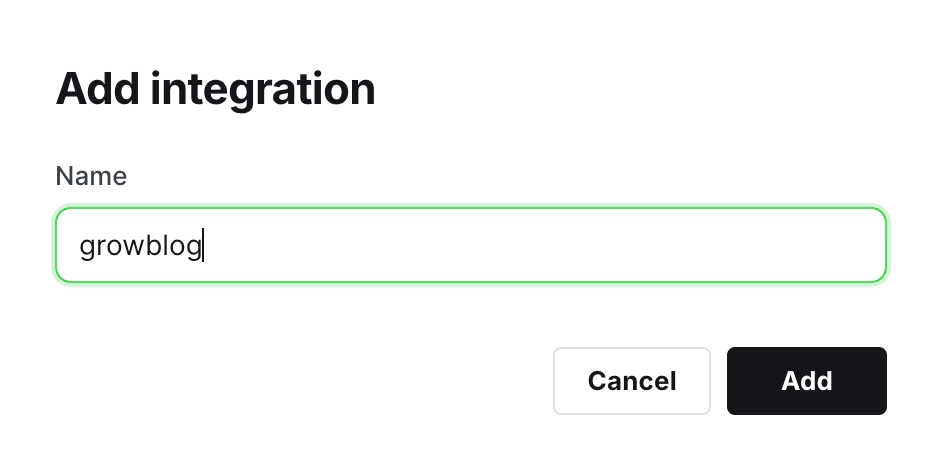
- Name it Growblog, then click Create
Optional: Add the Growblog icon in Ghost
If you’d like the integration to look great in Ghost Admin, you can upload the Growblog icon to your custom integration.
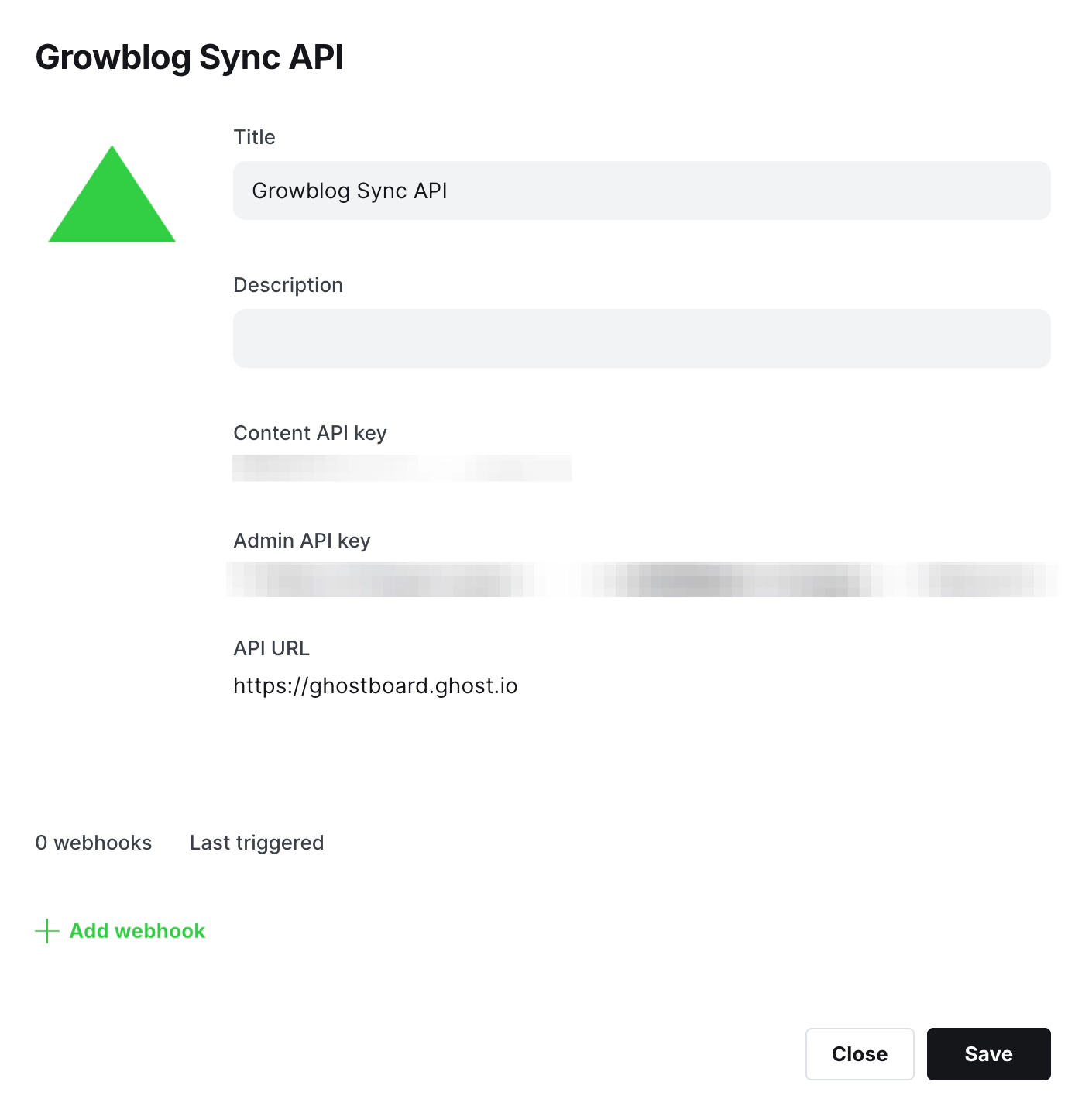
2. Copy the Content API key
Open the integration you just created and copy the Content API key.
3. Paste the key into Growblog
In Growblog:
- Open your dashboard settings, then go to Account -> Ghost API keys
- Paste the Content API key
- Click Change to save
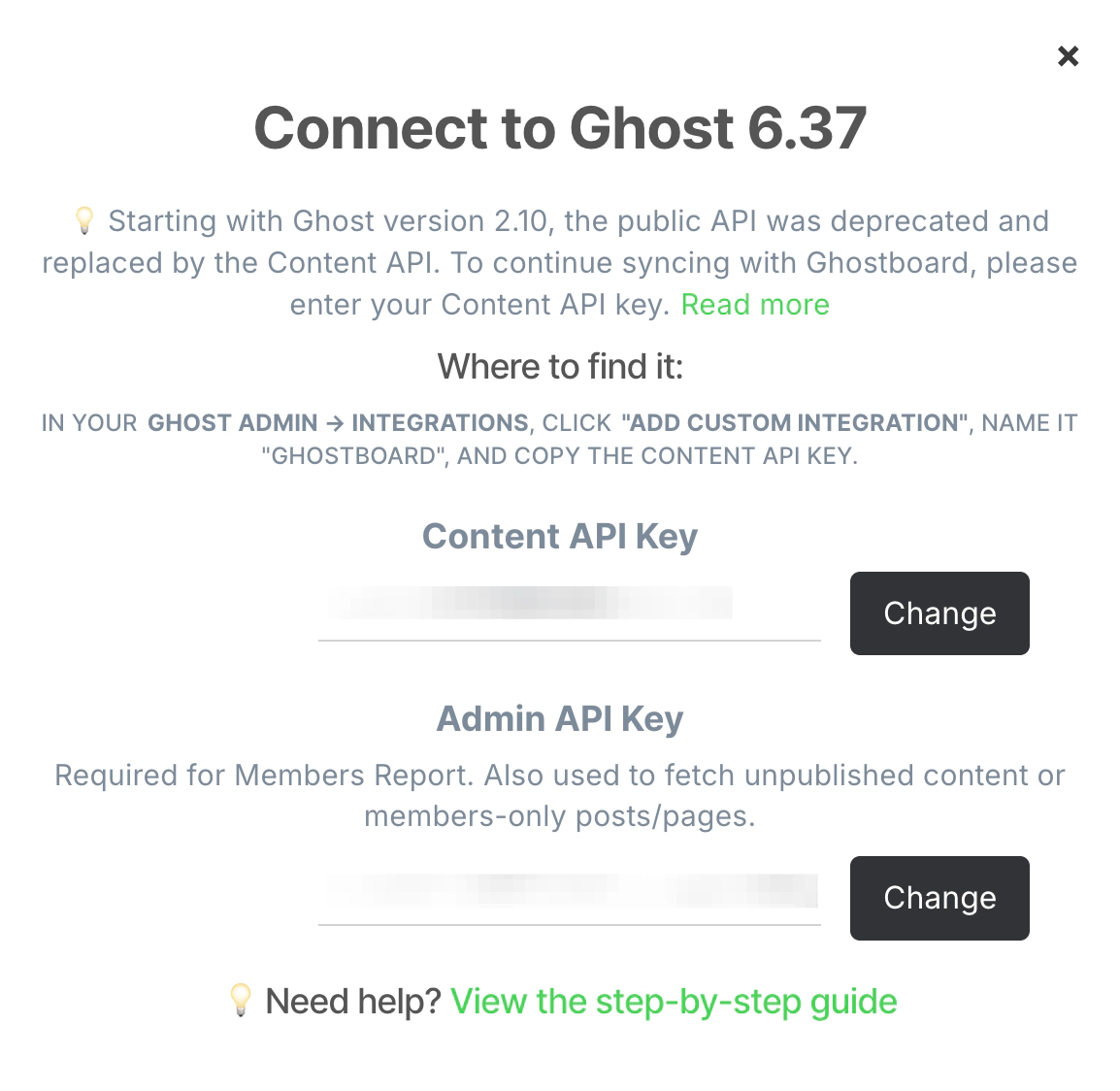
That’s it. Growblog will start syncing your publication data.


